

In these articles, we’ll look at how to set up high availability on one or more databases with the AlwaysOn feature, using the « dbatools » PowerShell library. To do this, we’ll need to set up an active directory, two SQL server instances on two different servers, using Failover Clustering and activate AlwaysOn on SQL Server. In this article you will learn :
- How to configure the SQL server environment for AlwaysOn.
- How to create an availability group.
- How to test the availability group.
Configuration of SQL Server for AlwaysOn
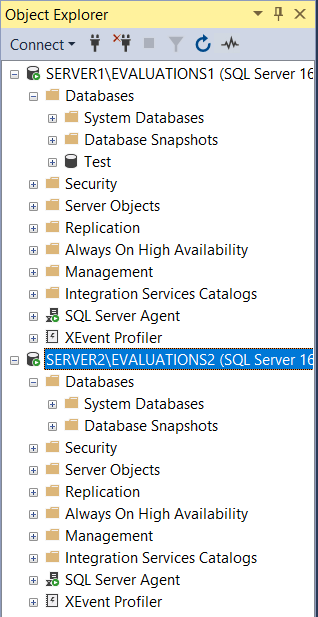
First of all, we're going to create a "Test" database on the first SQL server instance, which is on our "Server1" VM.
We now need to create a shared directory.
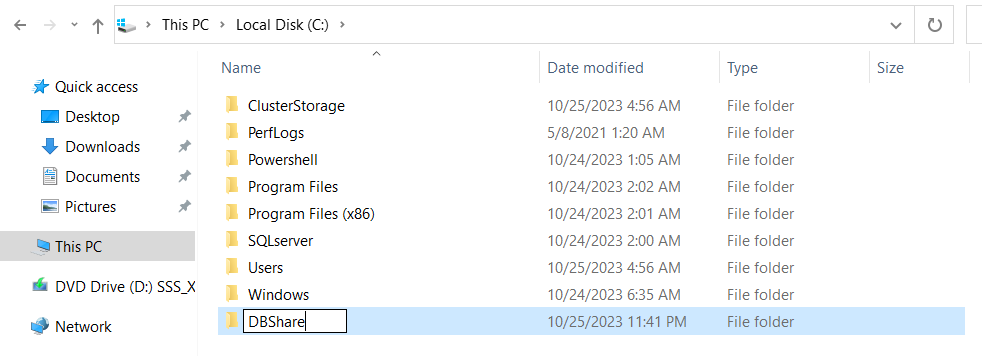
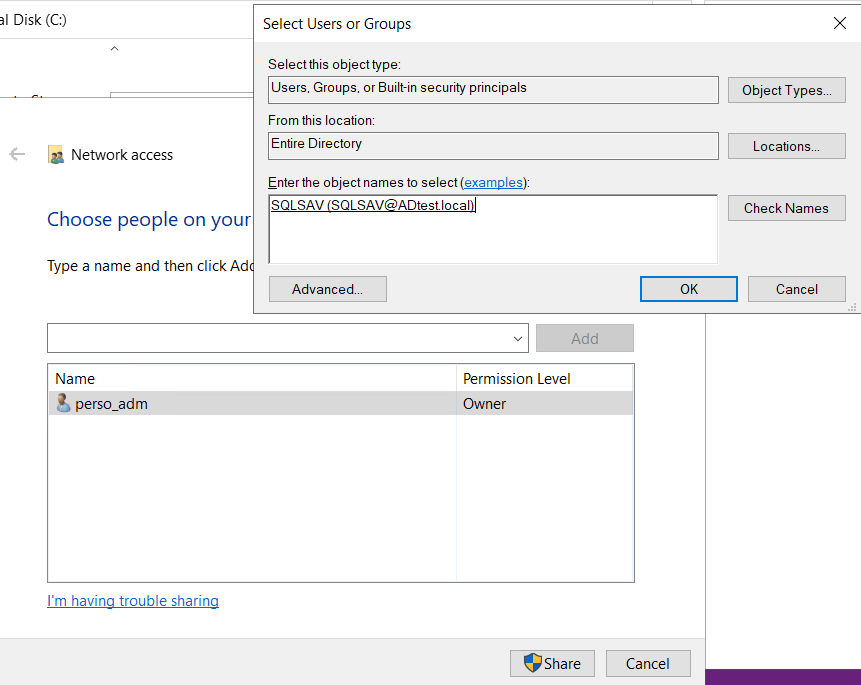
To do this, create a "DBShare" directory on the first VM, "Server1".Then right-click on it, "Properties" -> "Sharing" -> "Share" -> "Find People" and put in the service account we've created.
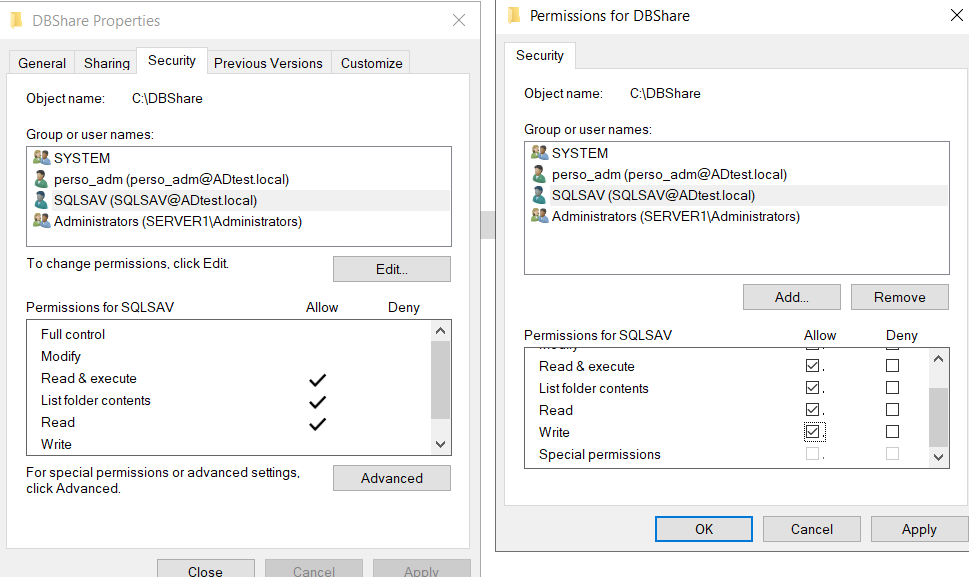
Finally, in the "Security" tab, select our SQL service account, then click on "Edit" and set it to "Write".
Creation of an Availibility Group
In PowerShell, we'll run these commands to initialize the two instances we'll be using.
$sqlinstance1=Connect-DbaInstance -SqlInstance SERVER1\EVALUATIONS1 -TrustServerCertificate
$sqlinstance2=Connect-DbaInstance -SqlInstance SERVER2\EVALUATIONS2 -TrustServerCertificate
Finally, to create the Availibility Group, run this PowerShell command, naming your AvailibilityGroup and the database you wish to replicate. Then remember to give the listener a valid IP address
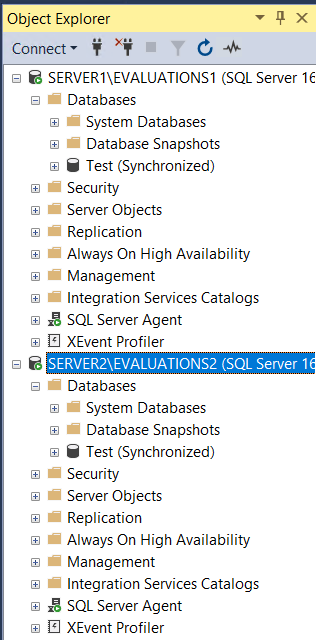
New-DbaAvailabilityGroup -Primary $sqlinstance1 -Secondary $sqlinstance2 -Name AG-Test -Database Organisation -ClusterType Wsfc -SeedingMode Automatic -FailoverMode Automatic -SharedPath "\\Server1\DBShare" -ConnectionModeInSecondaryRole "Yes"Add-DbaAgListener -SqlInstance $sqlinstance1 -AvailabilityGroup AG-Test -IPAddress 172.168.1.31As you can see, our "Test" database has been replicated on SERVER2 and the two databases are "Synchronized".
Testing the Availibility Group
To test the availability group, you need to connect to the listener which has the same name as the availability group, as we didn't specify it when we created it.
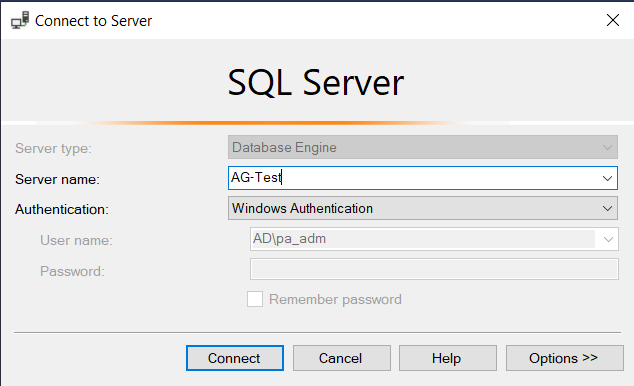
As you can see, when you connect to the listener, you have access to the "Test" database.
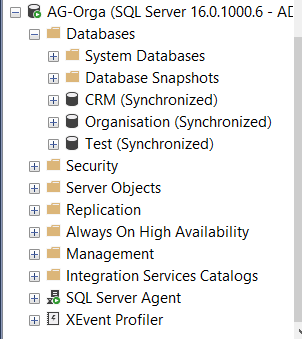
You have successfully activate AlwaysOn on SQL Server. You can now have fun switching off one of the two VMs to see that, when connecting to the listener, you still have access to your database.
Conclusion
In these articles, you'll have learned to activate AlwaysOn on SQL server to set up a high-availability solution, configuring the entire environment for its proper operation.


