

In these articles, we’ll look at how to set up high availability on one or more databases with the AlwaysOn feature, using the « dbatools » PowerShell library. To do this, we’ll need to set up an active directory and install SQL Server on a domain VM, using Failover Clustering. In this article you will learn :
- How to add a virtual machine to a domain
- How to install and configure an SQL Server Instance with Dbatools
Add a virtual machine to a domain
First of all to install SQL Server on a domain VM, we need to create and configure the same VM as the one we created in part 1, but change its name.
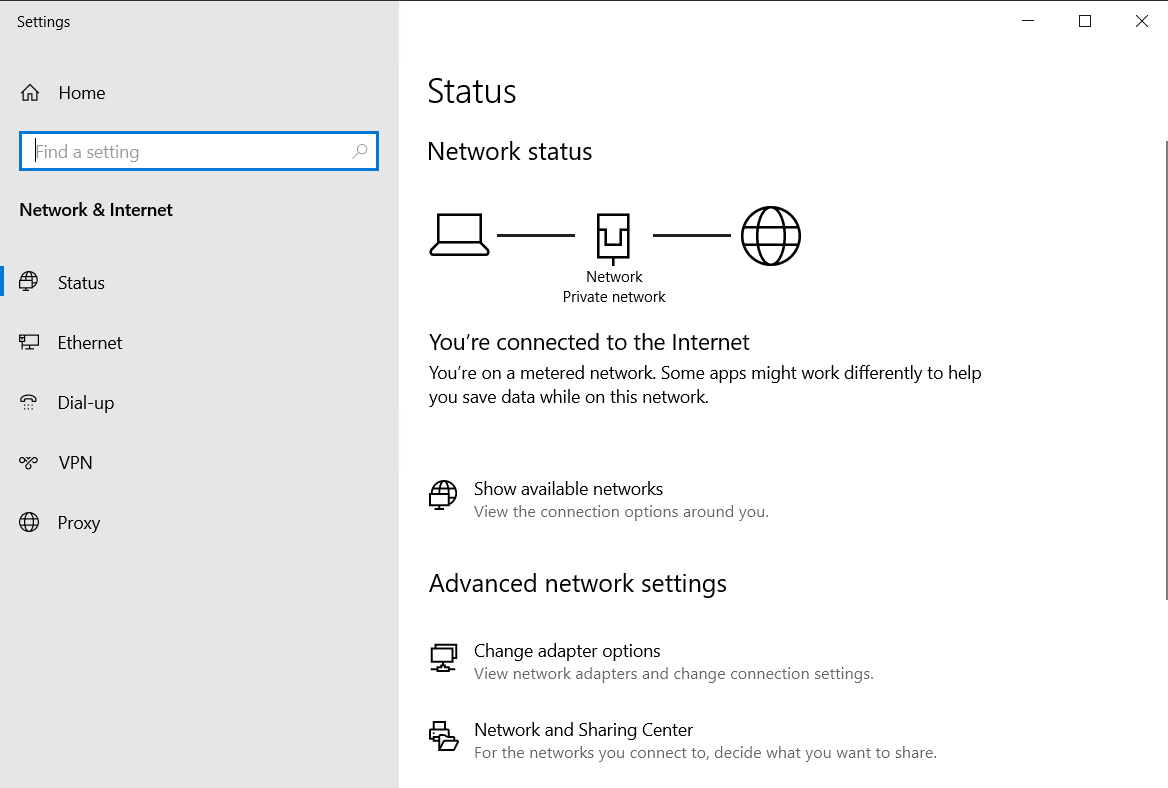
Then connect to it. We can now configure our fixed IP address, so let's go to "Network Status" then "Change adapter options".Right-click on "Ethernet" and "Properties".
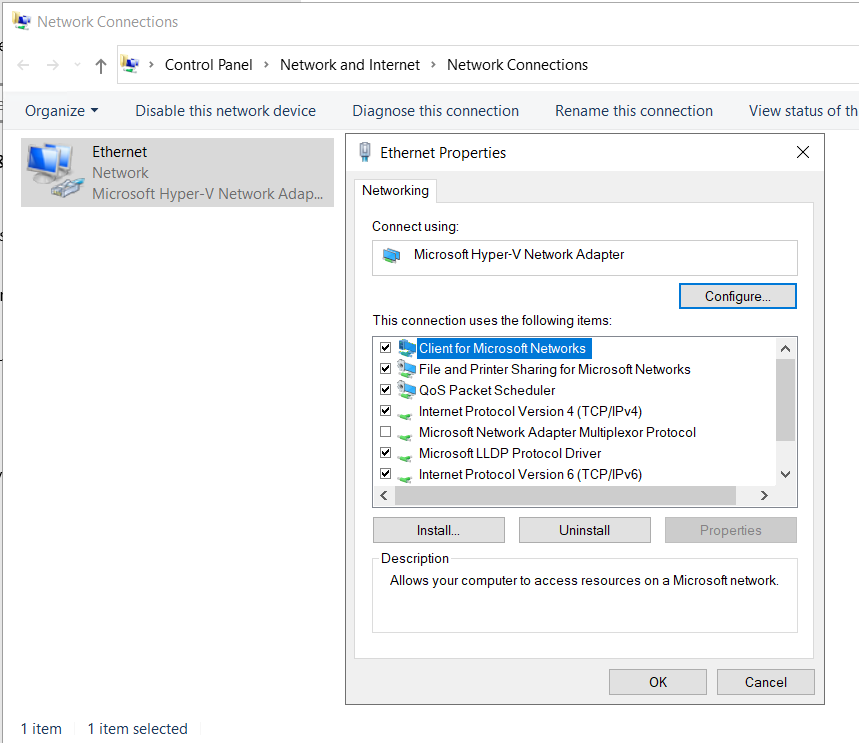
Select "Internet Protocol Version 4 (TCP/IPv4)" and right-click to select "Properties".
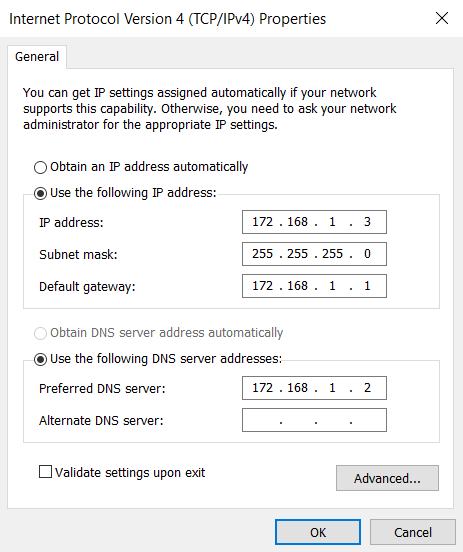
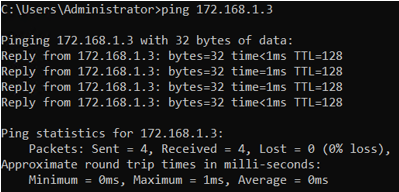
Then fill in the fields below, taking care to replace "IP address" and for "Preferred DNS Server" enter the IP address of the domain you've created.Test the ping with the Windows command prompt from the Active Directory server if your new VM responds.
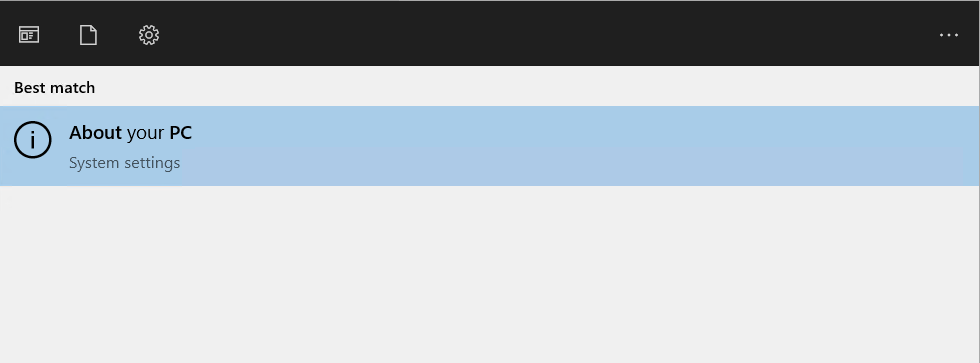
Change the VM's domain name, type "About your PC" in the Windows menu.
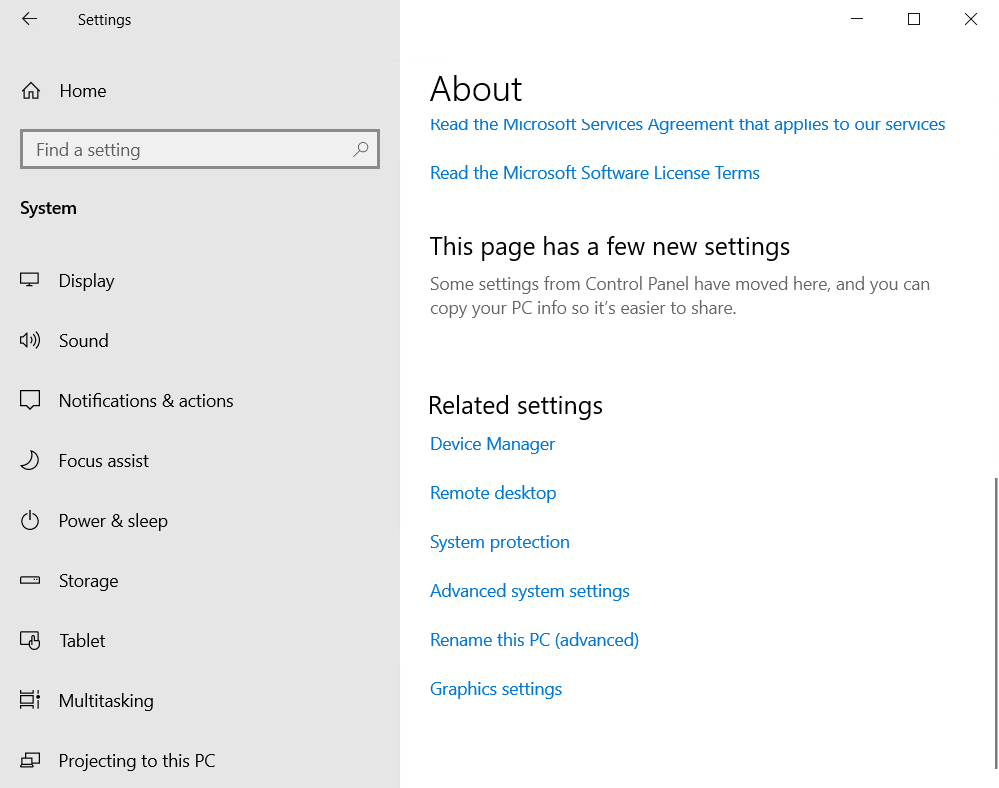
Click on "Advanced system settings" and go to the "Computer Name" tab.
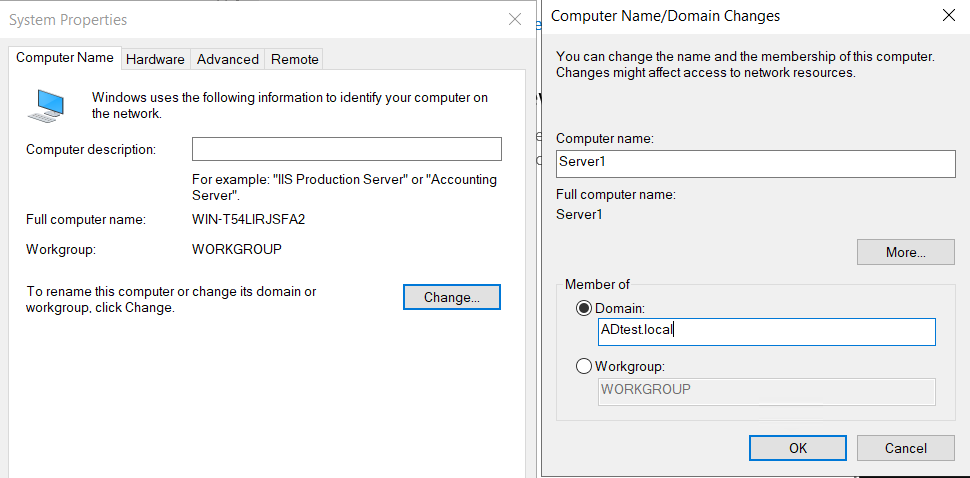
Click on "Change" and modify the "Computer name" and "Domain" fields.
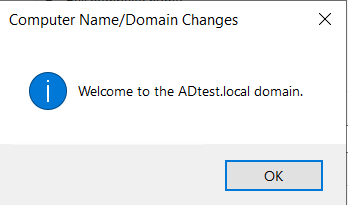
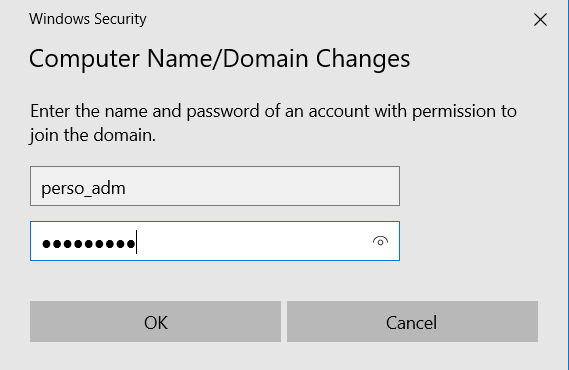
Then enter the domain administrator user "perso_adm" and password.
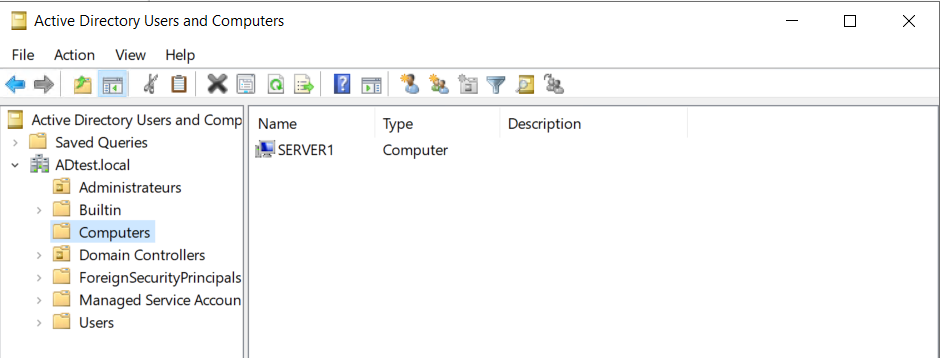
Check in the Active Directory "Active Directory Users and Computers" whether your VM appears in "Computers".
Repeat this procedure for the second VM, remembering to change its IP address.
Install and configure an SQL Server instance
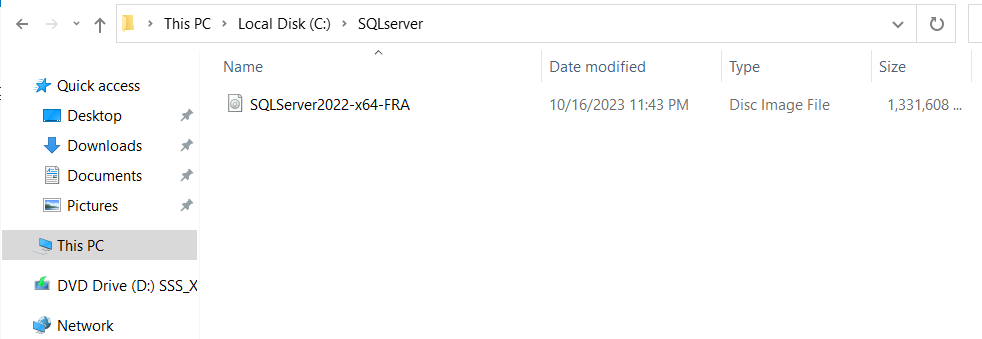
Let's now install SQL Server on a domain VM ! From your physical machine, download the SQL Server Evaluate Edition ISO file. Link : SQL Server 2022 | Microsoft Evaluation Center Then copy and paste it onto the VM where we're going to install a new instance.Install the dbatools powershell module by executing the powershell command below.
Install-Module -Name dbatoolsTo install the SQL server instance, use the powershell command below.
# Spécifiez le chemin du fichier ISO
$isoPath = "C:\SQLServer\SqlServer2022-x64-ENU.iso"
$version=2022
$InstanceName="EvaluationS2"
$feature="Engine"

# Montez le fichier ISO
Mount-DiskImage -ImagePath $isoPath
# Obtenez le chemin du lecteur monté
$mountedDrive = Get-DiskImage -ImagePath $isoPath | Get-Volume
# Affichez le chemin du lecteur monté
$driverLetter=$mountedDrive.DriveLetter

$path=$driverletter+":"

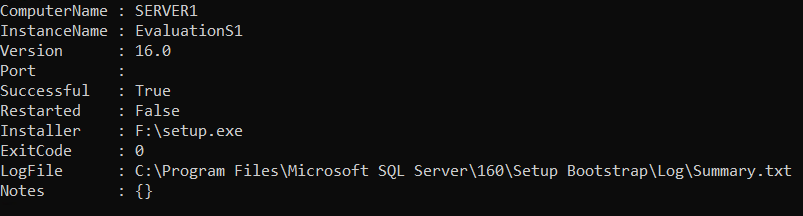
Install-DbaInstance -Version $version -InstanceName $InstanceName -Feature $feature -Path $path
Dismount-DiskImage -ImagePath $isoPath
Once the installation has been successfully completed and your VM has been restarted, run the SQL server 2022 configuration manager, located here : C:\Windows\SysWOW64\SQLServerManager16.mscOnce launched, you can execute the powershell command :
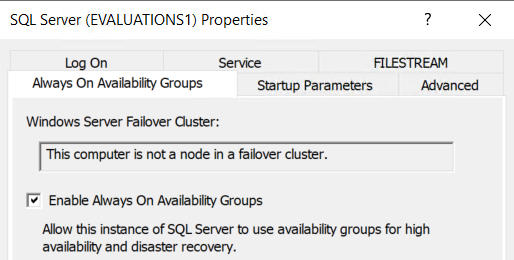
$instancesql=Connect-DbaInstance -SqlInstance Server1\EVALUATIONS1 -TrustServerCertificate
Enable-DbaAgHadr -SqlInstance $instancesql -Force
Or, right-click on the instance you've just created, then "Properties", then check the box in the "Always On Availibility Groups" tab. Finally, you need to restart the instance by right-clicking "restart".Download the SSMS installer to your physical machine, then copy it to your VM to install it there.
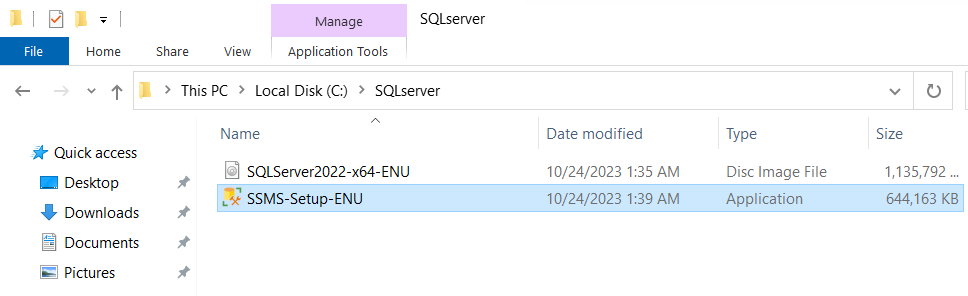
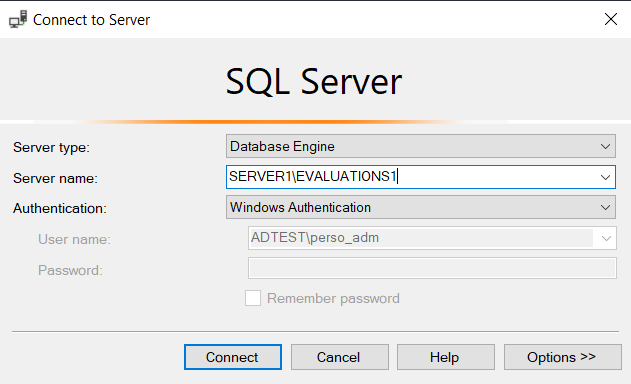
Link : Download SQL Server Management Studio (SSMS) - SQL Server Management Studio (SSMS) | Microsoft LearnUsing SSMS, connect to your new instance.
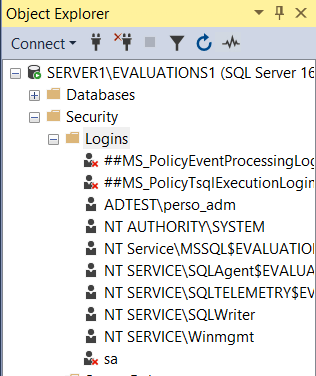
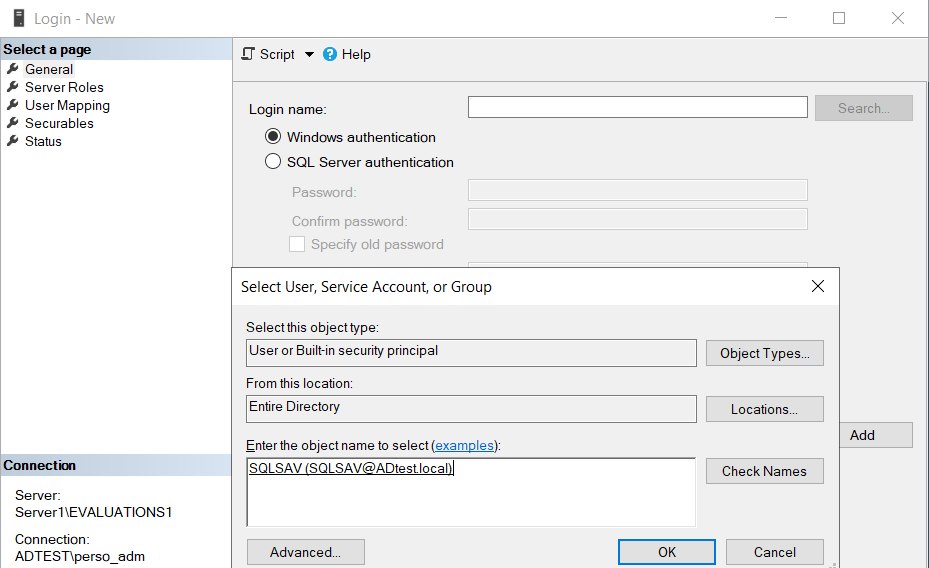
Now we're going to create a login with the SQL service account we've created at domain level. To do this, go to "Security" then "Logins" and right-click "New Logins".Then "Search", look for the SQLSAV user and "CheckNames".
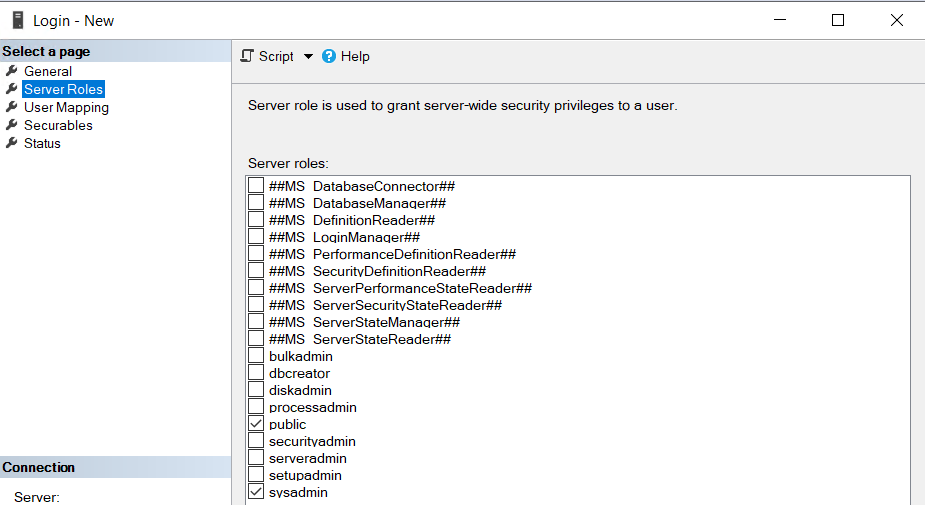
In the "Server Roles" tab, set the role to "sysadmin".
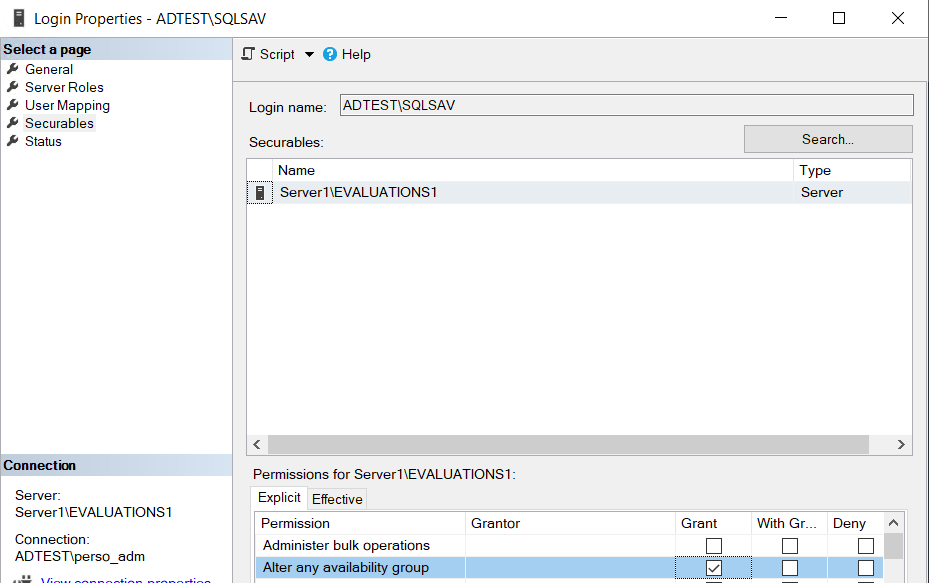
Finally, in the "Securables" tab, check the "Grant" box for "Alter any availibility group", "View server state" and "Connect SQL" on this instance.
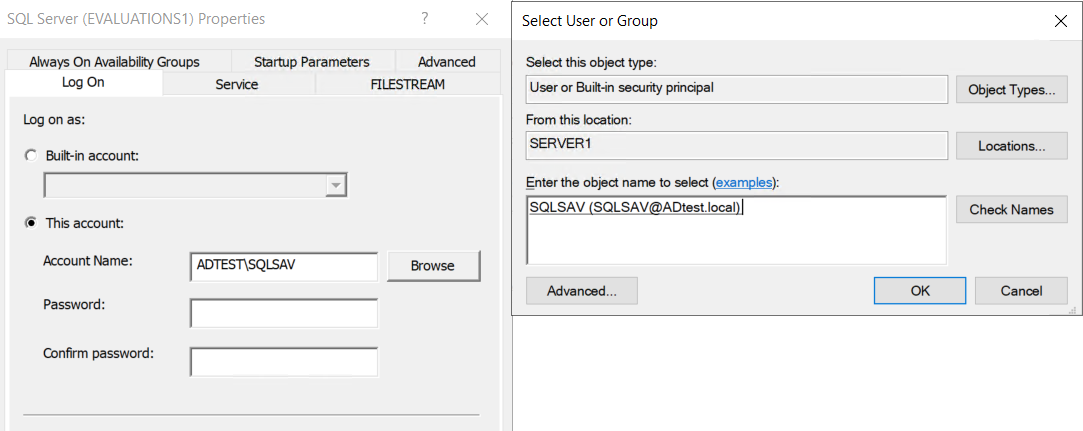
Now we just need to modify the service account in the SQL server configuration manager.
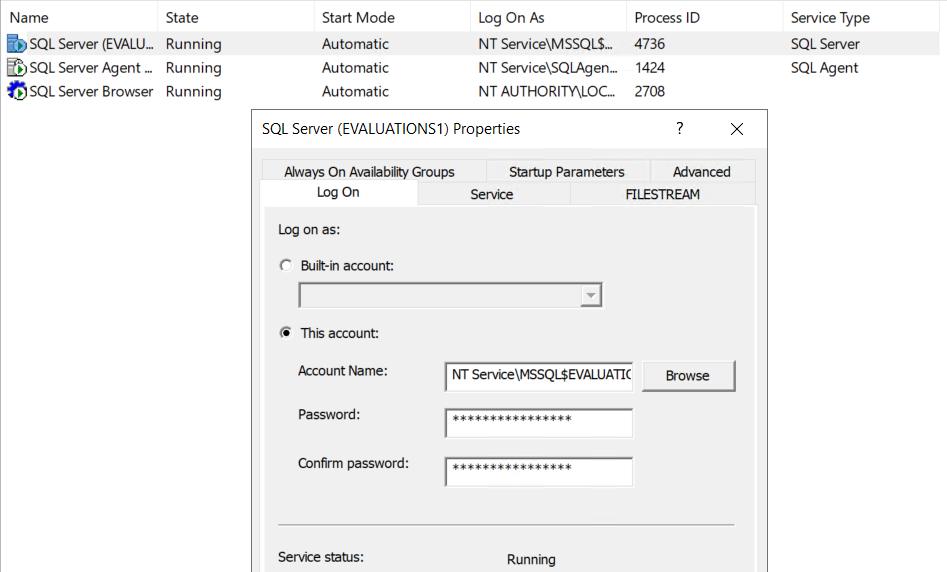
By entering the "ADTEST\SQLSAV" service account and password.
You have now finish to install SQL Server on a domain VM but you need to go through this whole section again to create the second instance on the second VM, without forgetting to change the instance name.
Conclusion
You now know how to install SQL Server on a domain VM. So, you have your two SQL Server instances on two different VMs belonging to the same domain. In Part 4, we'll look at how to set up a Windows cluster failover.


