

SQL Server 2025 introduces a powerful new feature: native vector embeddings generation using the AI_GENERATE_EMBEDDINGS function.
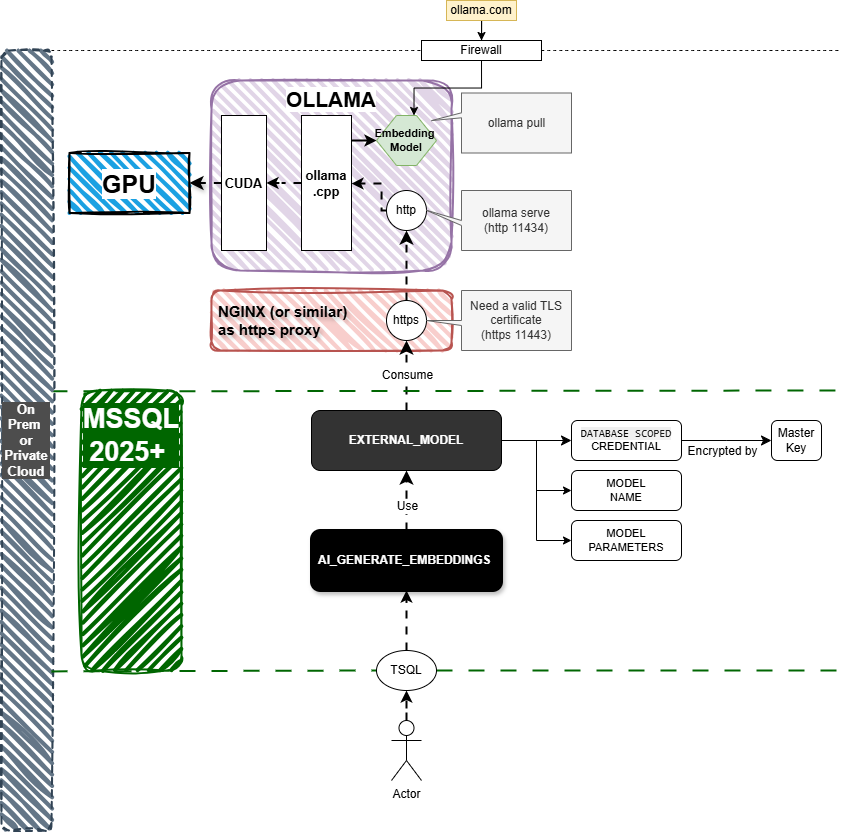
Behind this function lies a brand-new SQL Server object: the EXTERNAL MODEL. This object allows you to connect SQL Server to any HTTPS-compatible embedding service, whether in the cloud (using OpenAI or AZURE OpenAI API), on premise or even on your local machine using ollama.
In this post, I’ll walk you through how I successfully used this capability on a Windows laptop, leveraging Ollama and my NVIDIA RTX 4070 Ti Laptop GPU to generate embeddings from Wikipedia content. 🔥
Firsts Test with the SQL Server 2025 CTP2 (june 2025) and after with the RTM (November 2025) which improve performance of AI_GENERATE_EMBEDDINGS ( may be ollama improve also :-) who knows )
🧠 What is AI_GENERATE_EMBEDDINGS?
AI_GENERATE_EMBEDDINGS is a T-SQL function that delegates the actual embedding work to a model served through an EXTERNAL MODEL. That model can point to:
-
An OpenAI endpoint
-
An Azure OpenAI endpoint
-
A local Ollama service via HTTPS (like I did!)
This opens the door to on-prem embeddings using your hardware and your models.
🛠️ Prerequisites: Tooling Setup
To make everything work locally on my machine, I needed to install and configure the following:
1. SQL Server 2025
You’ll need the SQL Server 2025 CTP 2 version or later, supporting EXTERNAL MODEL and vector types.
2. Ollama (Local Model Serving)
Install Ollama with:
winget install Ollama.Ollama
Then pull a model for embeddings (you can find other models on ollama.com:
ollama pull nomic-embed-text
3. Nginx as HTTPS Proxy
Since SQL Server only allows HTTPS endpoints, I set up Nginx to proxy HTTPS to Ollama’s HTTP API (localhost:11434 → localhost:11443 with SSL).
4. OpenSSL for Certificate Generation
Install with:
winget install ShiningLight.OpenSSL.Light
I used a script createCerts.ps1 to:
-
Create a local certificate
-
Export
cert.keyandcert.crt -
Import into the Windows Cert Store
The createCerts.ps1 script :
param
(
[parameter(Mandatory=$true)][string]$DnsName,
[parameter(Mandatory=$true)][string]$Password,
[parameter(Mandatory=$true)][string]$FilePath
)
# Create a new self-signed certificate
$cert = New-SelfSignedCertificate -Subject $DnsName -DnsName $DnsName -FriendlyName "Ollama"
# Export the certificate to a file
Export-PfxCertificate -Cert $cert -FilePath $FilePath -Password (ConvertTo-SecureString -String $Password -Force -AsPlainText)
# Import the certificate as trusted
Import-PfxCertificate -Certstorelocation Cert:\LocalMachine\Root -FilePath $FilePath -Password (ConvertTo-SecureString -String $Password -Force -AsPlainText)
Then I updated the PATH variable to include OpenSSL.
5. Nginx Configuration (nginx.conf)
You can find a script to generate key and build the nginx.conf file :
$nginx_dir="D:\Sources\nginx\nginx-1.26.3"
$ollama_https_port = "11443"

mkdir c:\certs -Force
cd c:\certs
.\createCert.ps1 -DnsName localhost -Password "1234" -FilePath "C:\certs\cert.pfx"

winget install ShiningLight.OpenSSL.Light

$oldPath = [Environment]::GetEnvironmentVariable("Path", "User")
$newPath = $oldPath + ";C:\Program Files\OpenSSL-Win64\bin"
[Environment]::SetEnvironmentVariable("Path", $newPath, "User")

$env:Path = [System.Environment]::GetEnvironmentVariable("Path","Machine") +
";" + [System.Environment]::GetEnvironmentVariable("Path","User")

cd C:\certs
openssl pkcs12 -in cert.pfx -nocerts -out cert.key -nodes
#enter password

openssl pkcs12 -in cert.pfx -clcerts -nokeys -out cert.crt

$conf = "
worker_processes auto;
events {
worker_connections 1024;
}
http {
upstream ollama {
server localhost:11434;
}
server {
listen $ollama_https_port ssl;
server_name localhost;
ssl_certificate C:\certs\cert.crt;
ssl_certificate_key C:\certs\cert.key;
ssl_protocols TLSv1 TLSv1.1 TLSv1.2;
ssl_ciphers HIGH:!aNULL:!MD5;
location / {
proxy_pass http://localhost:11434;
proxy_http_version 1.1;
proxy_set_header Host \`$host;
proxy_set_header X-Real-IP \`$remote_addr;
proxy_set_header X-Forwarded-For \`$proxy_add_x_forwarded_for;
proxy_set_header X-Forwarded-Proto \`$scheme;
proxy_set_header Origin '';
proxy_set_header Referer '';
}
}
}
"

out-file -FilePath $nginx_dir\conf\nginx.conf -InputObject $conf -Force -Encoding ASCII

cd $nginx_dir
.\nginx.exe -t

# use only the following 3 commands once the certificate is integrated to the system
$nginx_dir="D:\Sources\nginx\nginx-1.26.3"
cd $nginx_dir
.\nginx.exe
Now Move to SQL Server
🧪 SQL Server Embedding Setup
6. Enable External REST Endpoint In your SQL Server instance:
sp_configure 'external rest endpoint enabled', 1;
GO
RECONFIGURE WITH OVERRIDE;
GO
7. Create a New Database and Import Data
I used a dataset of 25,000 Wikipedia articles (title + content) to test embeddings at scale.
8. Define the EXTERNAL MODEL
CREATE EXTERNAL MODEL OllamaNOMIC
AUTHORIZATION dbo
WITH (
LOCATION = 'https://localhost:11443/api/embed',
API_FORMAT = 'Ollama',
MODEL_TYPE = EMBEDDINGS,
MODEL = 'nomic-embed-text:latest'
);
🔎 Note: SSMS v21 does not show EXTERNAL MODELS in the Object Explorer. Use
SELECT * FROM sys.external_modelsinstead.
🧠 First Tests
Static String Embedding
SELECT AI_GENERATE_EMBEDDINGS(N'Isaac Asimov and the foundation series' USE MODEL OllamaNOMIC);
It worked! SQL Server contacted my HTTPS endpoint through Nginx, and Ollama returned the vector.
⚡️ Massive Load Testing
Embed titles only
Title Only Embeddings (25,000 rows)
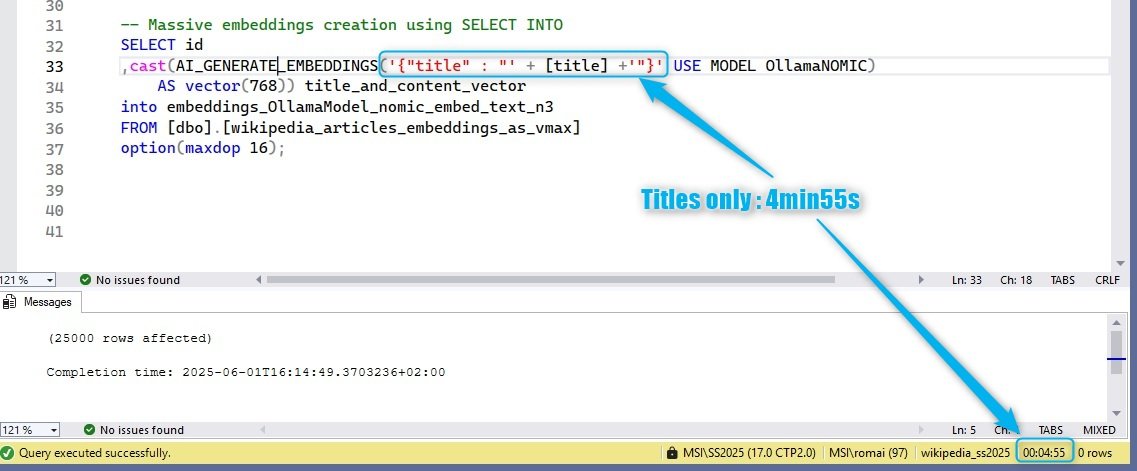
SELECT id,
  cast(AI_GENERATE_EMBEDDINGS([title] USE MODEL OllamaNOMIC) AS vector(768)) title_vector
INTO embeddings_titles_only
FROM [dbo].[wikipedia_articles]
OPTION (MAXDOP 16);
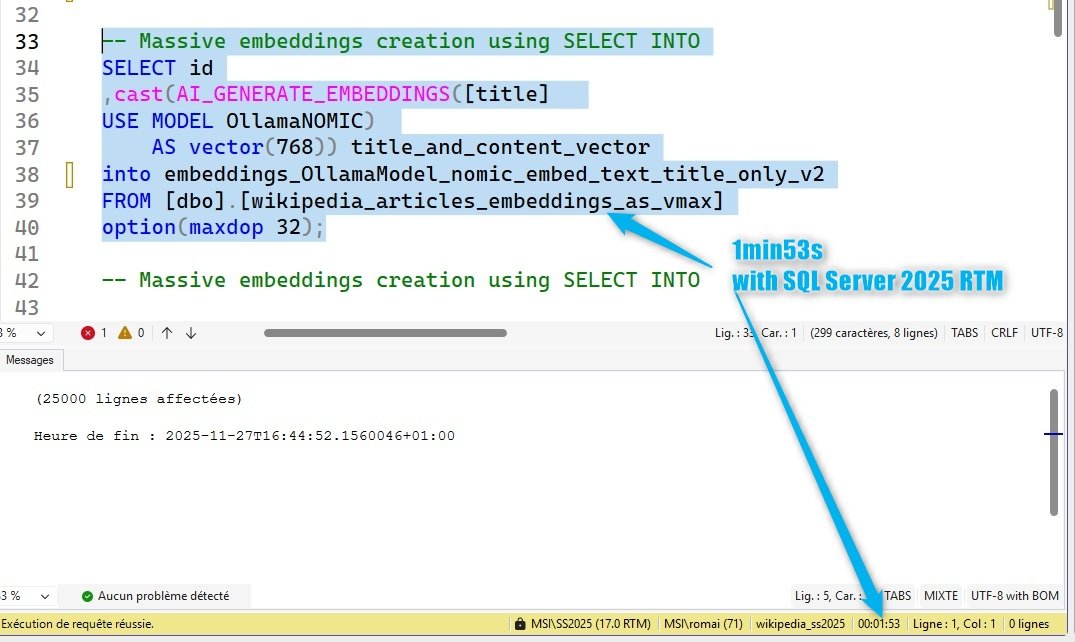
Update (2025-11-27) : with the SQL Server 2025 RTM, performances are improved.
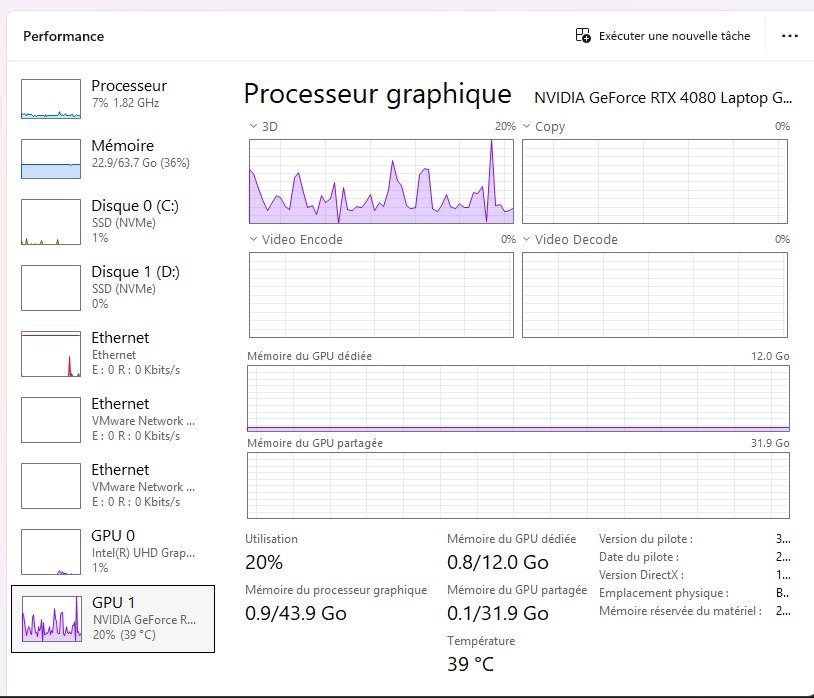
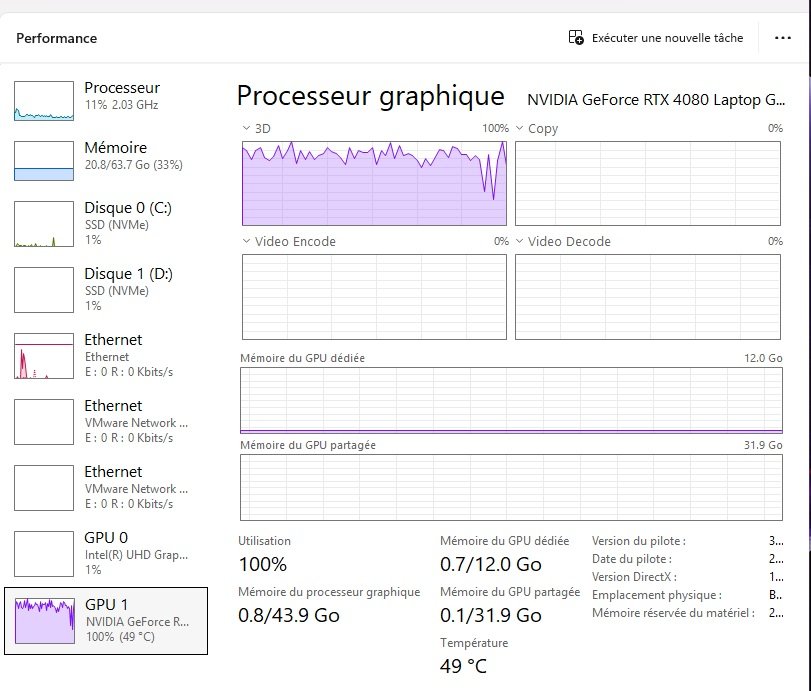
On the system we can see the GPU in action.
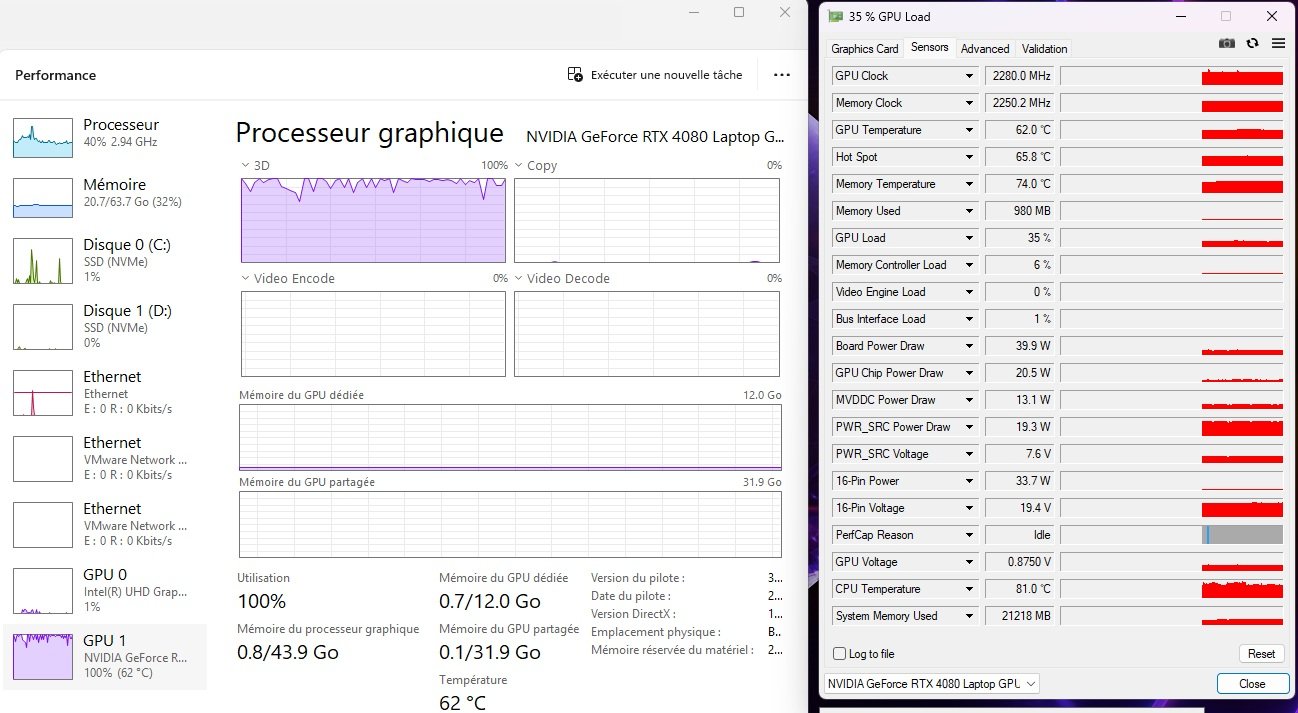
At the biginning the GPU is at 100%, sometime it go does down to 70% (may be temperature throttling)
First performance results : 25_000 embeddings using only titles in 4min55s with SQL Server 2025 CTP2
First performance results : 25_000 embeddings using only titles in 1min53s on SQL Server 2025 RTM
Embed titles and articles contents
Title + Content Embeddings (25,000 rows) :
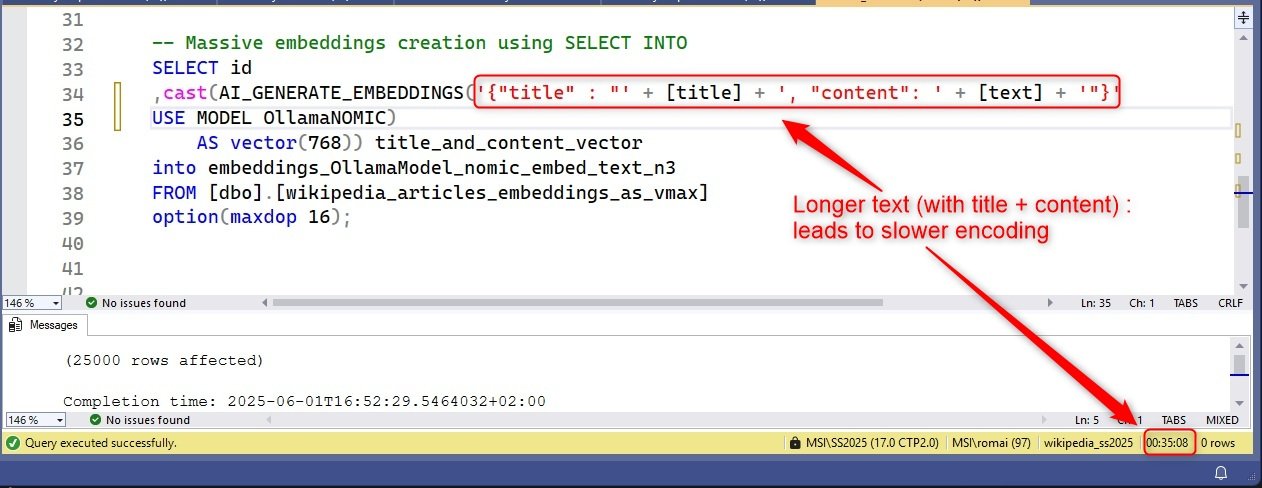
SELECT id,
  cast(AI_GENERATE_EMBEDDINGS('{"title" : "' + [title] + '", "content": "' + [text] + '"}'
  USE MODEL OllamaNOMIC) AS vector(768)) AS title_and_content_vector
INTO embeddings_OllamaModel_nomic_embed_text_n3
FROM [dbo].[wikipedia_articles]
OPTION (MAXDOP 16);
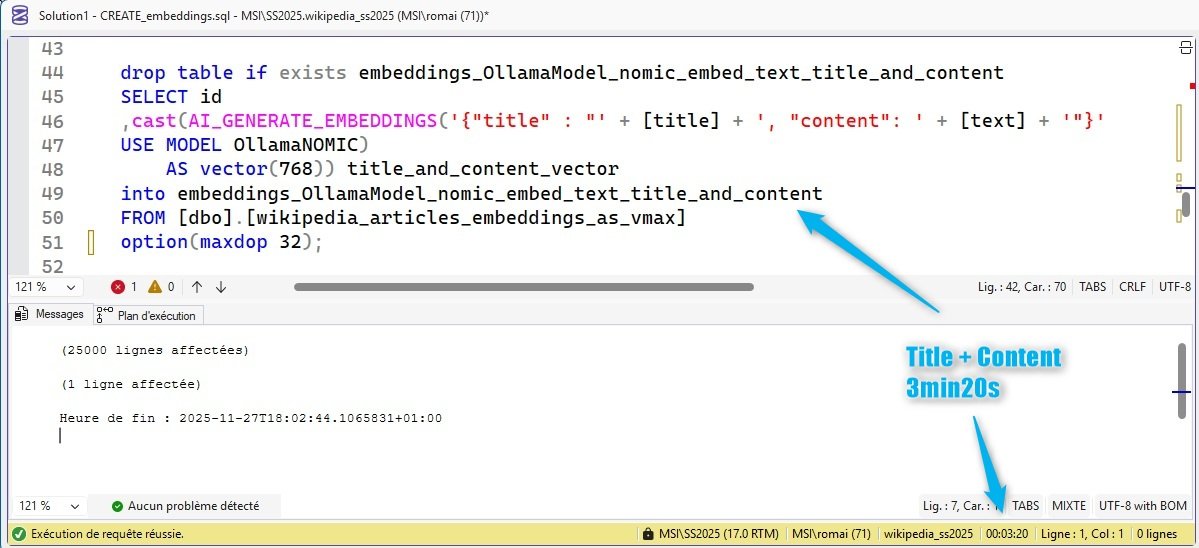
Update (2025-11-27) : with the SQL Server 2025 RTM, performances are improvedAt the beginning of the "run", the GPU is used intensivelyBut rapidly the GPU is less used :
Second performance result : 25_000 embeddings using titles and contents get in 35min08s with the SQL Server 2025 CTP2
Second performance result : 25_000 embeddings using titles and contents get in 3min20s with the SQL Server 2025 RTM
This show us an important insight from the results :
- the performance is strongly impacted by the length of the data
- the rtm performances are much better than CTP2
Conclusion
It is quite long to embedded long data, even with GPU. Next I will try to compare with :
- Getting embeddings with CPU only
- Getting embeddings from the external (using pytorch for exemple). This will allow to compare with batching computation.
To me, the performance are a little bit slow. This may be due length of the data (to big), to the interconnect with the GPU or with some software layers that slow down the process. But i have not many exemples to compare with and i see that the data length is an important factor for comparing performance. The model is also a factor of performance. Using a smaller model, of a quantized one should also improve performance but will decrease the embeddings quality. Next I will :
- try to chunk the content to reduce the size of the input data (if necessary)
- use another model like snowflake artic
- use pytorch to compute embeddings and store the result in SQL Server (as vector)
- use FastTransfer to parallelize from outside sql server
- use a cloud API


